

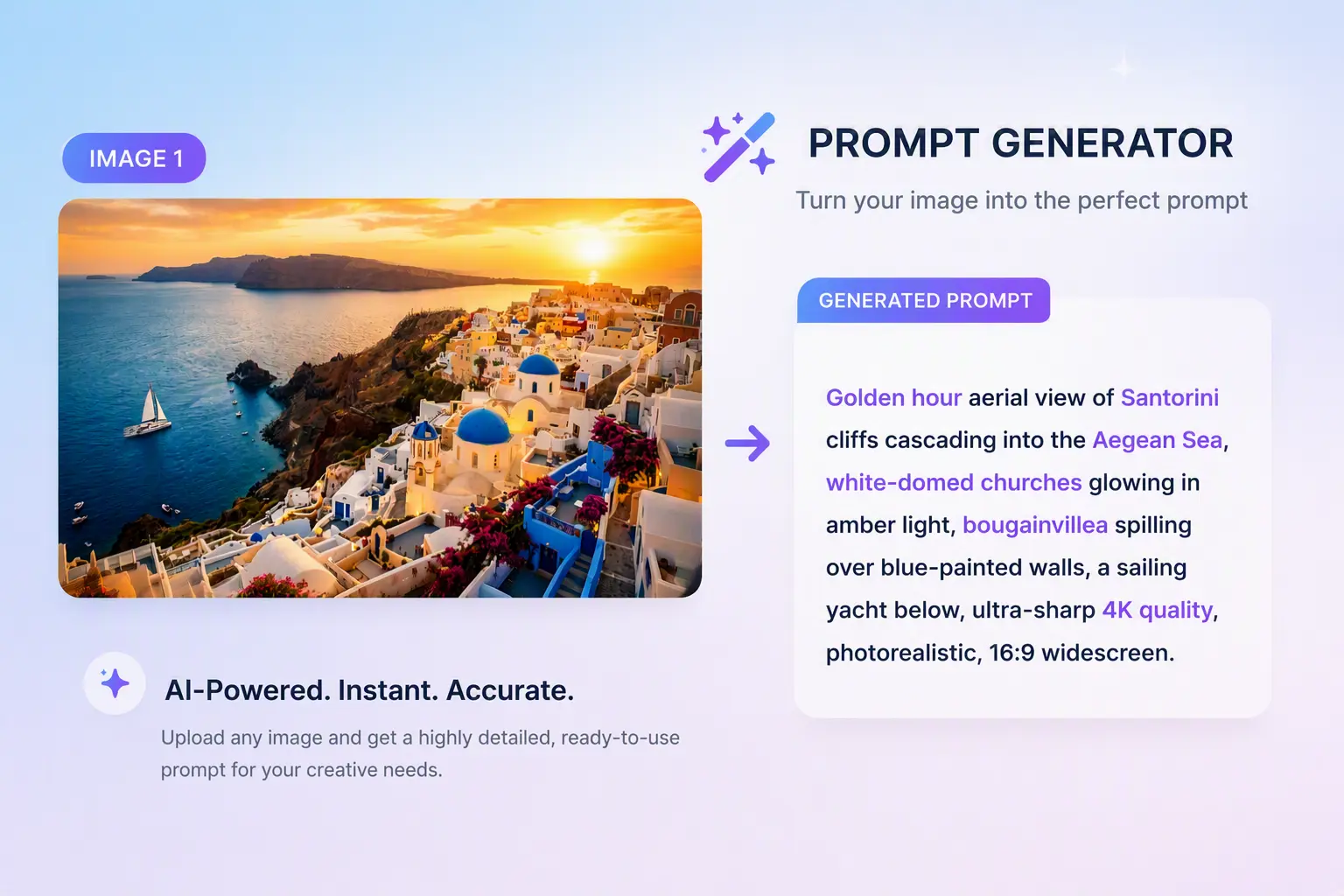
Prompt Generator
Turn a rough idea into a prompt with details on the subject, lighting and composition. Copy it into the image workspace when you’re ready to create.
Use Prompt Generator →Give your next idea a clearer starting point. Use the Prompt Generator to turn a rough brief into detailed instructions, and discover the image tools coming next.
Turn a rough idea into a prompt with details on the subject, lighting and composition. Copy it into the image workspace when you’re ready to create.
Use Prompt Generator →We’ll add more tools for creating and editing images here as they become available.
Start with the Prompt Generator to develop your creative brief. More tools for working with images will join the directory as they launch.
Describe your goal and optionally add a reference image. Include the subject, style and intended use to give the tool useful context.
Review and copy the prompt, adjust any details, then use it in your next image generation or editing task.
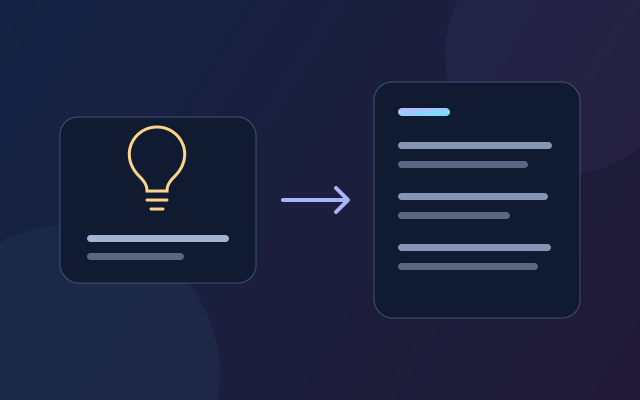
Start with a short idea. Use the Prompt Generator to develop the subject, setting, lighting and composition into a fuller image prompt.
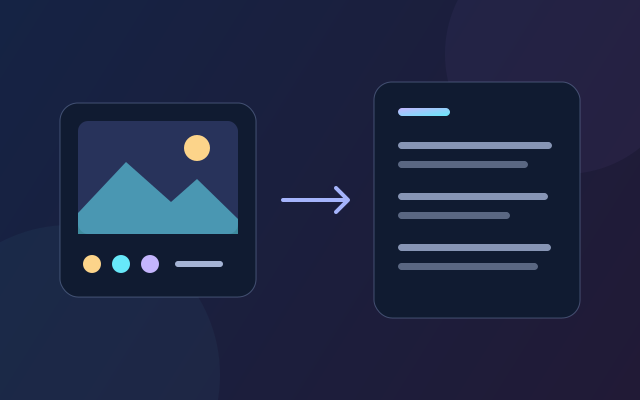
Add a reference image and explain which colors, mood or composition matter to you. Turn those visual cues into a description you can adapt.
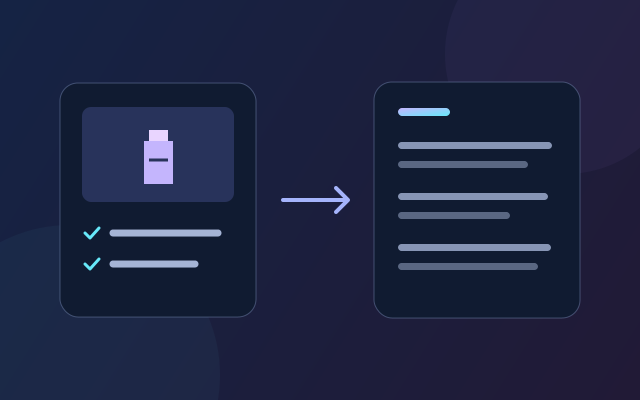
Describe what you want to change and which details should stay. Organize those requirements into instructions for an image editing tool.